
The Uninvited Pixel Pattern
What Is It?

My Morning Surprise

I sat down with my coffee this morning, opened my Chromebook, and there it was. A green grid icon sitting on my taskbar that I definitely didn't put there. My heart rate immediately kicked up. As someone with autism, unexpected changes to my digital environment hit different. They're not just confusing; they're genuinely unsettling.
I hovered over it cautiously. "Apps and games," it said. Didn't install that. Didn't ask for it. My mind started racing through worst-case scenarios: Malware? Virus? Someone hacked my Chromebook while I slept?
I refused to click it. Instead, I stared at it, took a deep breath, and decided to investigate properly. Twenty minutes of searching later, my shoulders finally relaxed. Turns out this little green intruder wasn't an intruder at all.
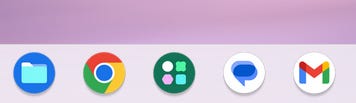
Have you noticed a mysterious green grid icon suddenly appearing on your Chromebook's shelf (that's the taskbar at the bottom of your screen)? You're not alone! Several Chromebook users have reported this icon showing up without warning, leaving them wondering if it's a legitimate feature or something more concerning.
What is this green grid icon?
The green grid icon labeled "Apps & games" is actually a built-in ChromeOS feature. It's part of the App Launcher system that helps you access your installed applications. Think of it as Chrome's version of the Start button on Windows or the Application folder on a Mac.
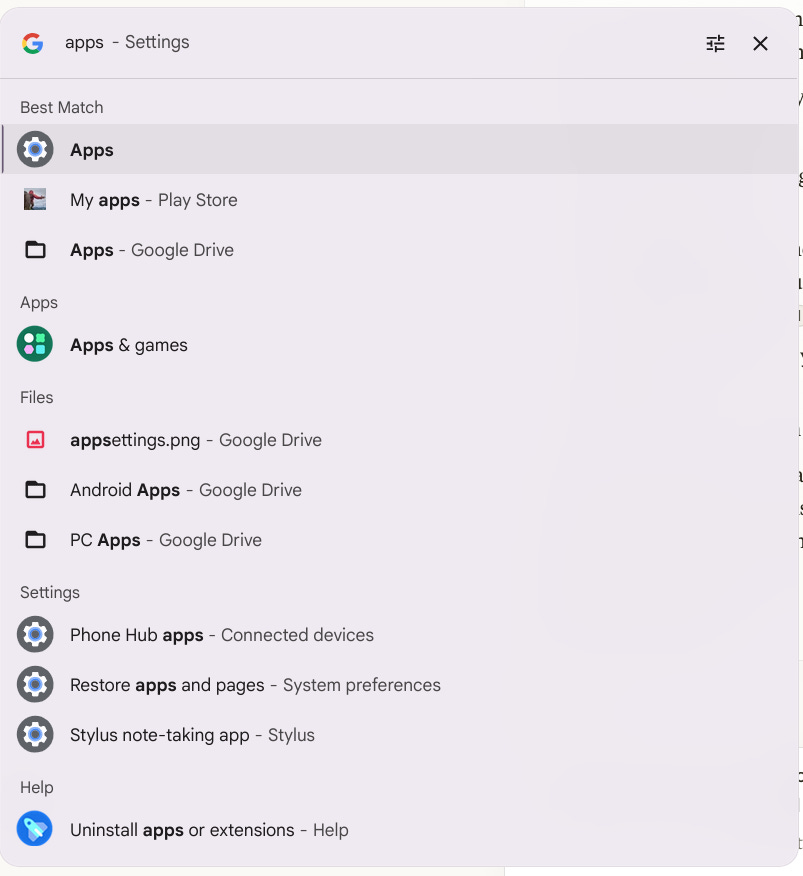
Why did it suddenly appear?
This icon likely appeared after a recent ChromeOS update. Google regularly pushes updates that can change the appearance or functionality of your Chromebook's interface. Sometimes these updates add new icons or features to your shelf without asking first - which explains why it seemed to appear out of nowhere!
Is it safe?
Yes! This is an official part of ChromeOS, not malware or a suspicious app. The "Apps & games" icon is designed to give you quick access to your installed applications and games in a grid view. It's completely safe and actually intended to make your Chromebook experience more convenient.
What does it do?
When clicked, this icon opens a grid view of your installed apps and games, allowing you to:
See all your applications in one place
Launch apps quickly
Organize your apps (in some ChromeOS versions, you can sort them by name or color)
How to remove it if you don't want it
If you prefer not to have this icon on your shelf:
Right-click (or two-finger tap) the icon
Select "Unpin" from the menu that appears
This will remove it from your shelf, but the functionality will still exist in your system and can be accessed through the main Launcher (the circle icon in the lower-left corner).
Will it affect my Chromebook's performance?
No need to worry about performance impacts! This launcher component is designed to be lightweight and won't noticeably affect your Chromebook's speed or battery life when not in use.
Disclosure: This post benefited from the use of Claude for research and fact-checking, for proofreading and structural input. The author remains solely responsible for the final content and its accuracy.